Tags
Show tags below the card text
When on, tags are shown on a line below the card text instead of inside it.
Tag click action
Controls what clicking a tag on a card does:
- Search Obsidian Vault (default) — opens Obsidian's global search for that tag.
- Search Kanban Board — filters the current board by that tag instead (adds it to the filter; with the Filter header button turned off, it searches the board's text).
Tag sort
Controls the order lists sort cards into when a tag-based sort is used. Add tags in the order you want them to sort; cards without a listed tag sort after the ones that have one.
Tag colors
Give specific tags a background and text color, shown wherever that tag appears on a card.
Highlight card
Switch on Highlight card for a tag to mark the whole card, not only the tag: cards with that tag get a stripe on the left and a light tint of the tag's background color (or its text color, if only that is set).
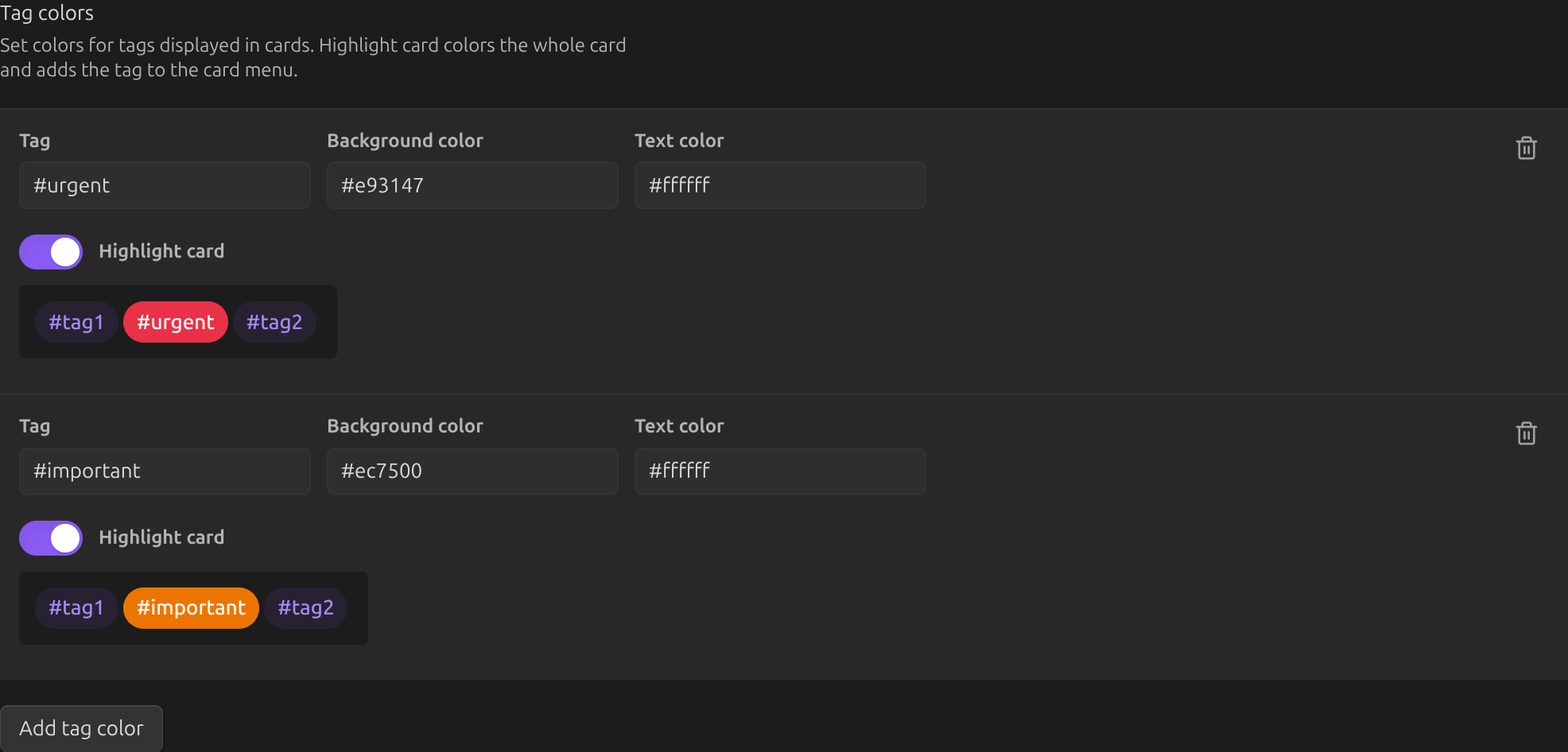
Two such tags come ready: #urgent (red) and #important (orange). Change their colors,
switch the highlight off or delete them like any other entry — they are added only once, so a
deleted one does not come back. If you already had a color for one of these tags, it keeps your
colors and gets Highlight card switched on.
Every tag with Highlight card on also appears in the card menu (⋮) under Mark as: picking it adds the tag to the card; a checked tag is already there, and picking it again removes it.
- If a card has several highlighting tags, the first one in the Tag colors list wins; to change the order, remove an entry and add it again.
- The highlight shows on the board, not in the table view.
- Tag colors set in a board's own settings replace the global list for that board, the ready-made tags included.