Cards and lists
Adding and editing cards
Click Add a card at the bottom (or top, depending on your
insertion setting) of a list, or click a
card to edit it in place. By default, Enter finishes a card and Shift+Enter adds a new line
— this can be swapped in New line trigger.
Turn on a checkbox next to each card's title with
Display card checkbox; Ctrl/Cmd-clicking it
archives the card.
Embedding images
Images can be embedded in a card just like in any other Obsidian note:
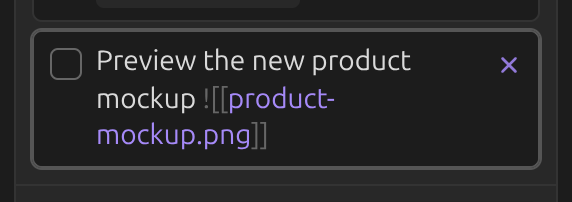
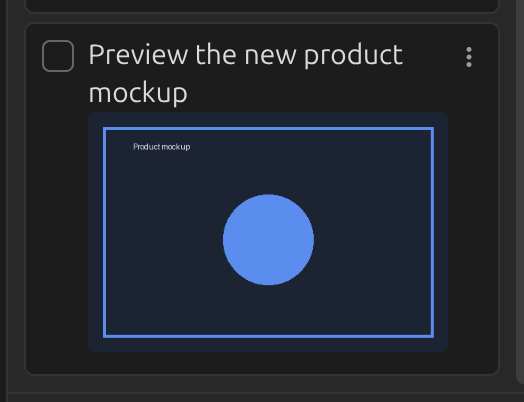
A card can also display an image pulled from a linked note's metadata — see Linked page metadata.
Creating a note from a card
Right-click a card, or open its ⋮ menu, and choose New note from card.
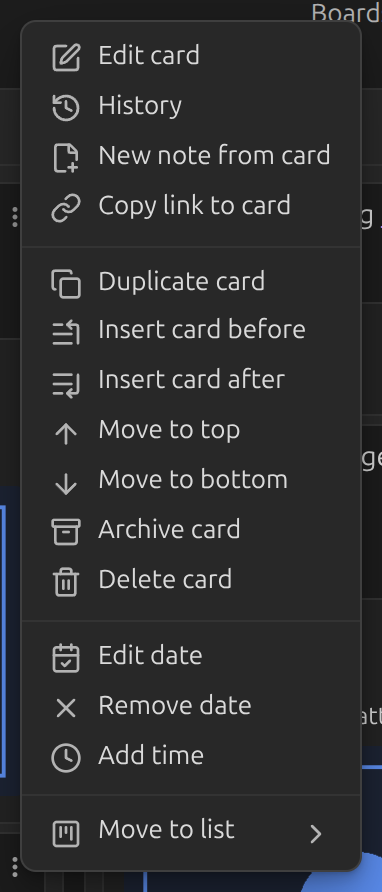
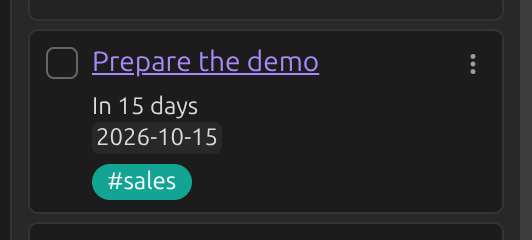
This creates a note in the note folder using the note template, titled after the card's text. The card then links to the new note.
WIP limits
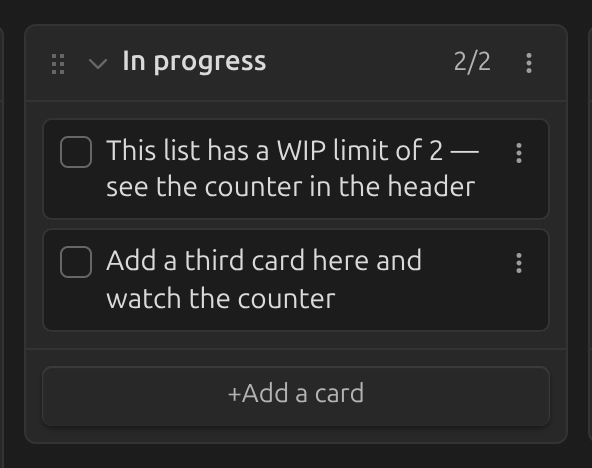
To cap how many cards a list can hold, put the limit in parentheses after the list's title —
for example, rename In progress to In progress (5). The limit shows next to the list's
card count:
Once the list has more cards than the limit, the count is shown in bold:
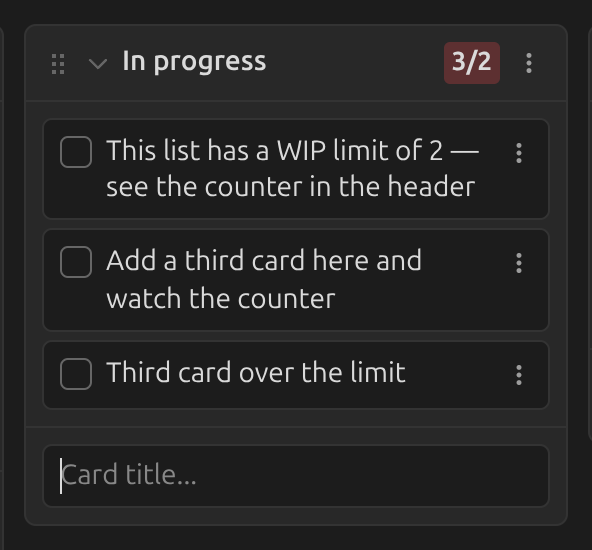
Rename the list again with a new number (or without one) to change or remove the limit.
Searching a board
Search a board like any other note — the default hotkey is Ctrl/Cmd + F.
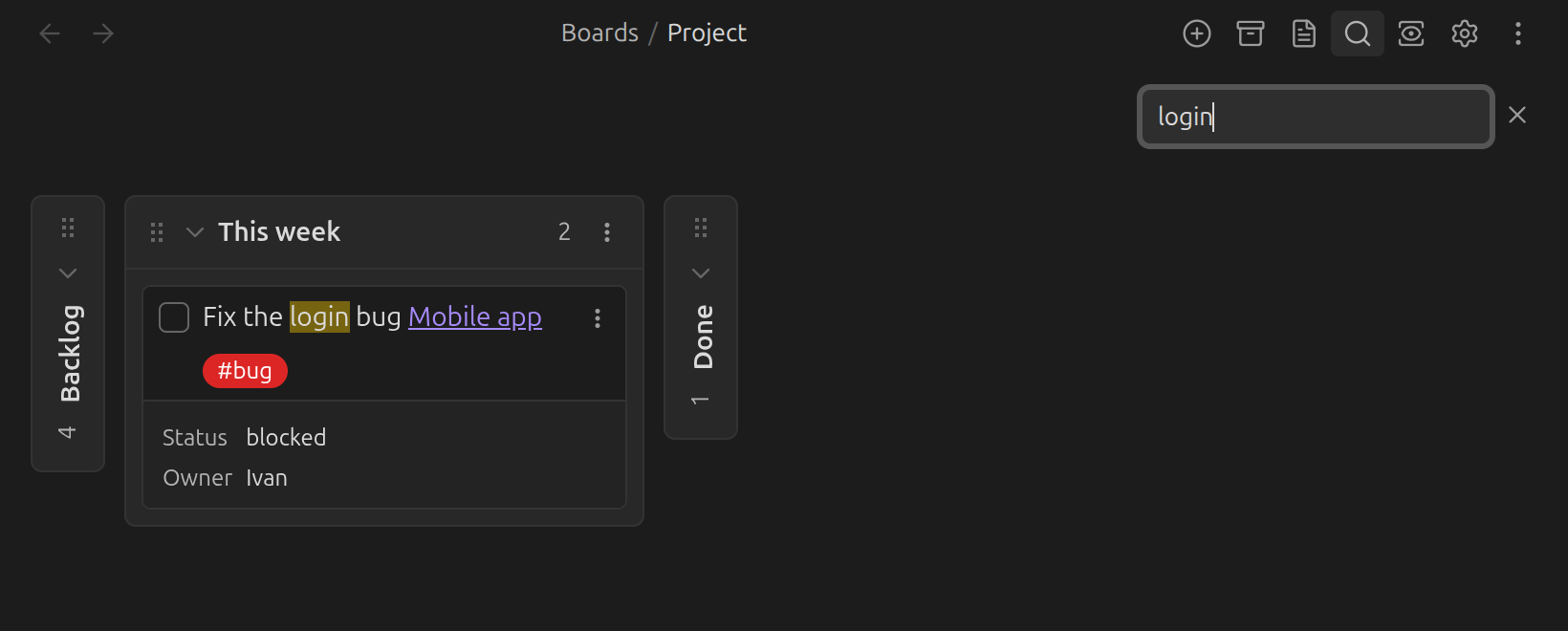
Whether clicking a tag searches the board or the whole vault is controlled by Tag click action.